Stream connectivity metadata directly to Azure in real-time
Before each device is able to send data to the application it needs to communicate with the mobile network to ensure that the data is allowed to be sent over the network. This communication happens through signaling events which are usually hidden to the application. The EMnify DataStreamer makes this connectivity metadata available in real-time to your cloud platform for detailed insights on the event and usage data of your devices.
Prerequisites
- A device with a cellular modem and EMnify SIM card
- An Azure account
Benefits
- connectivity metadata integrated into operational dashboards for service teams
- allows faster triaging between device, connectivity and application issues
- insights about network attach, data and roaming issues or when device is above service limit
- view on service usage and cost per device
- directly delivered to Azure event hubs without need for managing public IPs
Integration steps
To create an Event Hub, users in Azure need to create a namespace which is used to group multiple event hubs.
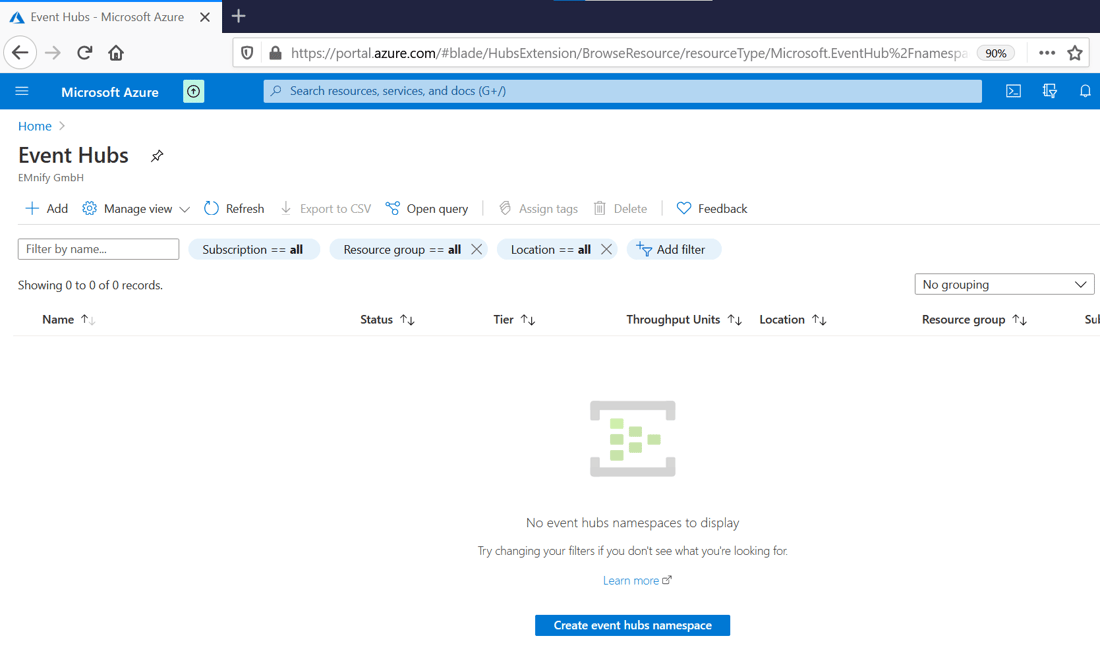
1. In the Azure portal, navigate to Event Hubs and click + Add or Create event hubs namespace:
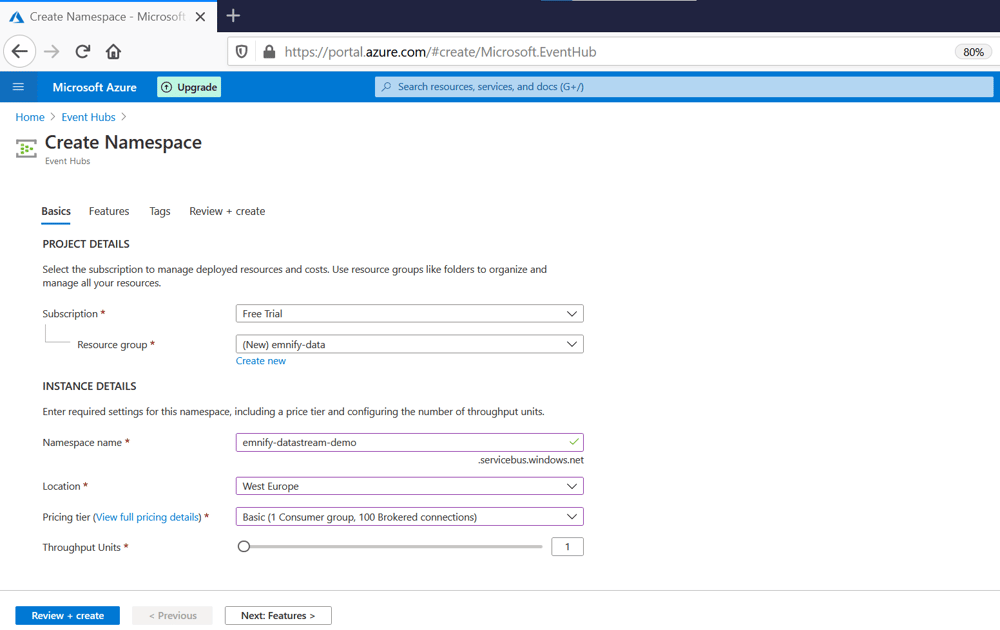
2. Provide a name and create a resource group for the namespace and click Review + Create. After successful Validation Click Create.
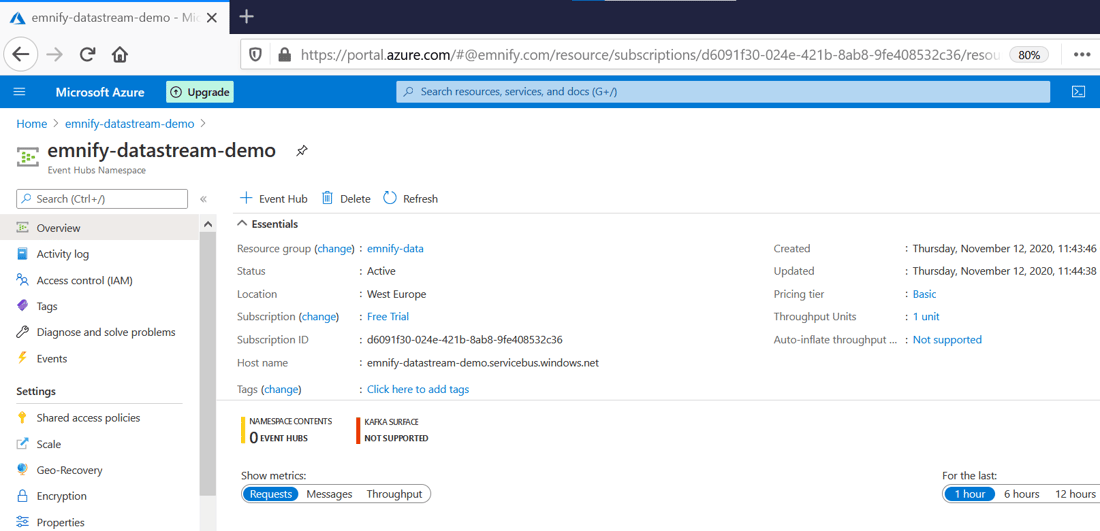
3. Select the newly-created namespace and click + Event Hub
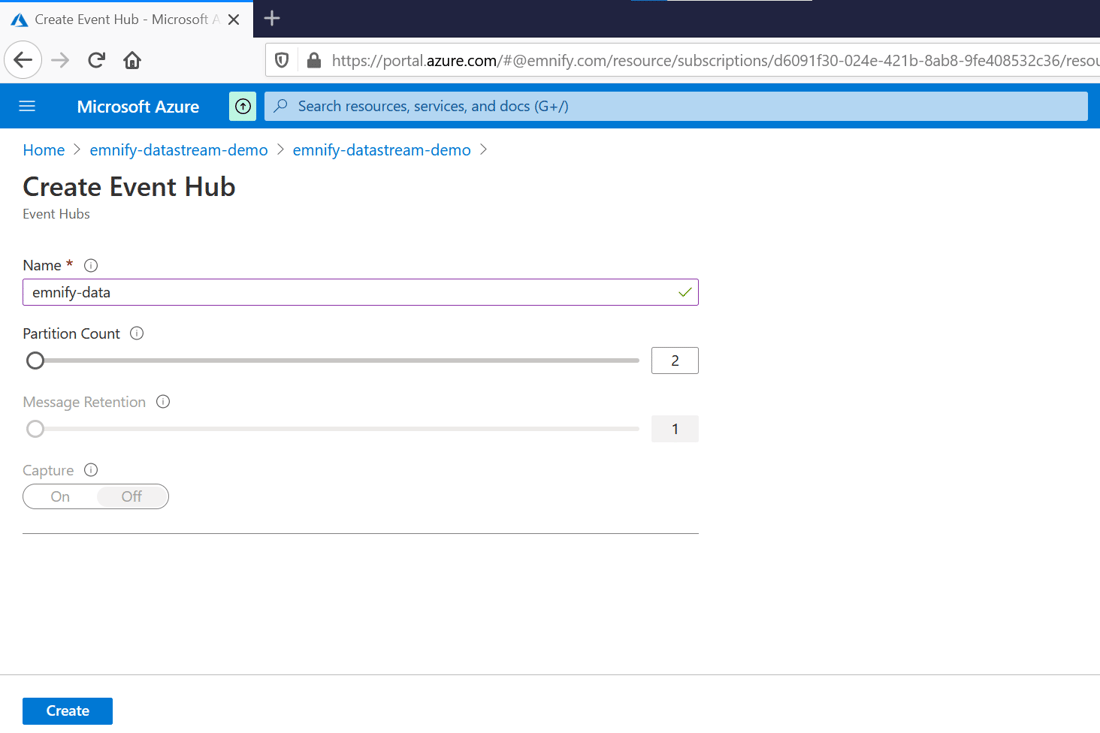
5. Give the event hub a name and click Create
6. After the Event Hub has been created, the next step that needs to be done is configuring access for the EMnify Datastreamer to be able to publish incoming events.
First, navigate to the newly created Event Hub by clicking on Event Hubs under Entities.
Click Shared Access Policies under Settings on the Event Hub page as shown below. (Make sure to be on the Event Hubs page and NOT the Namespace page)
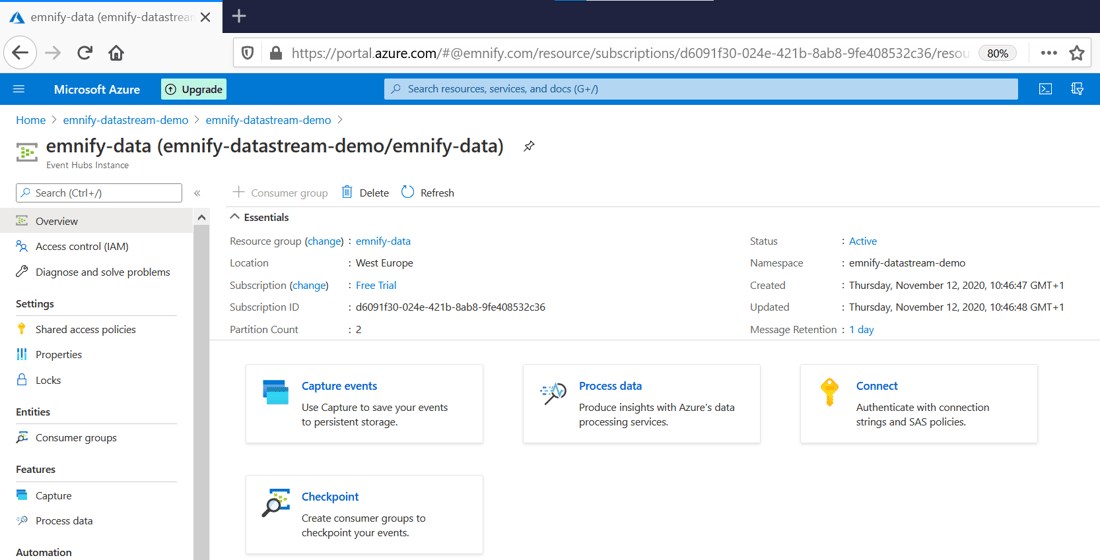
7. Click + Add to create a new access policy with a relevant name, this policy must allow allow Send and Listen permissions:
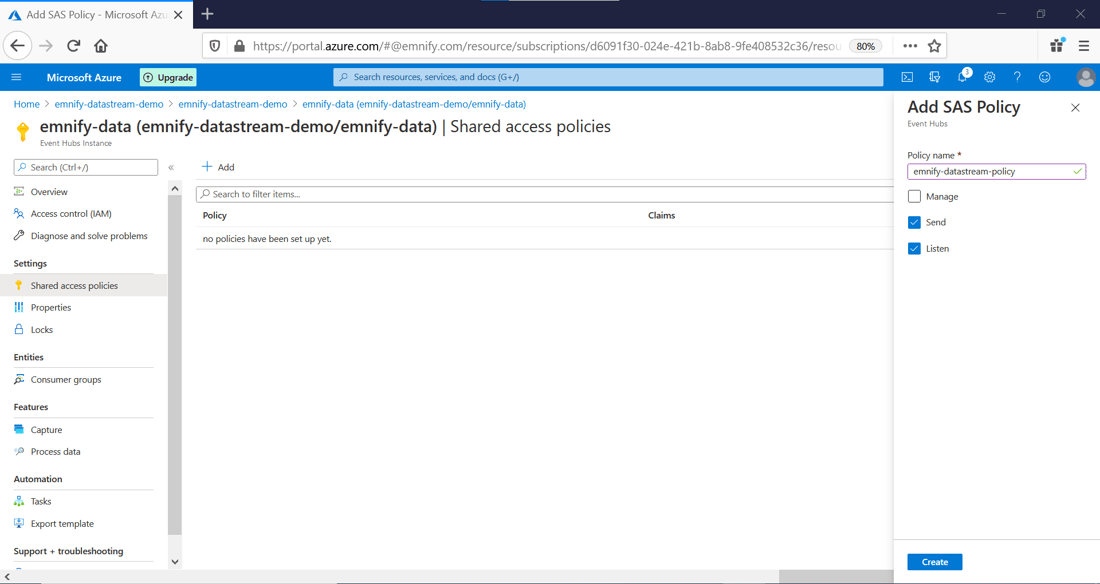
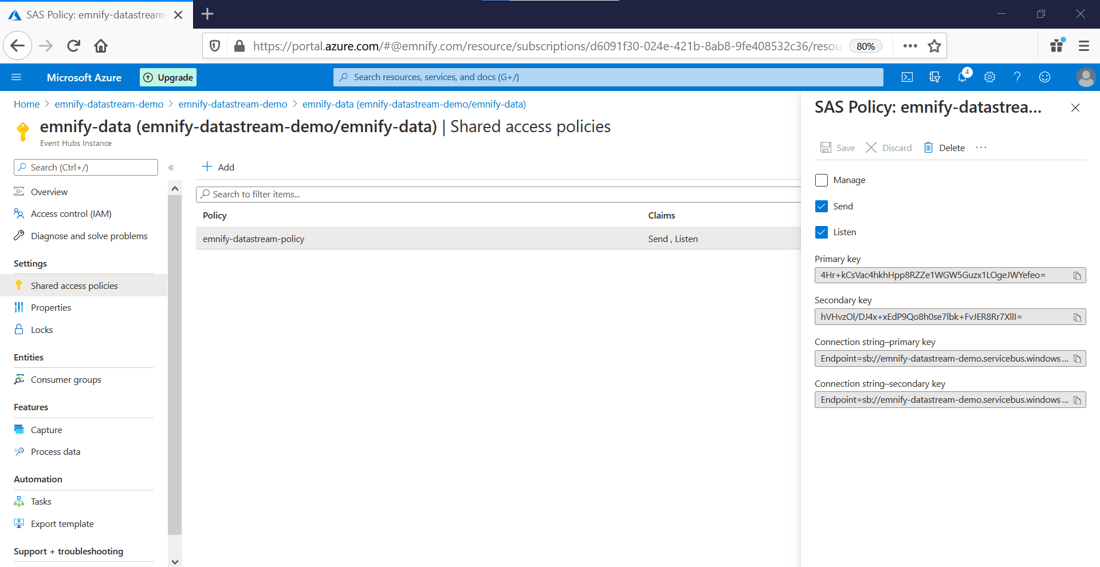
8. After clicking Create, click on the newly created access policy to display the connection credentials that the EMnify Datastreamer requires for publishing events.
Copy the Connection String Primary Key:
Adding Stream in the EMnify Portal
Log in to the EMnify portal and navigate to the Integrations page:
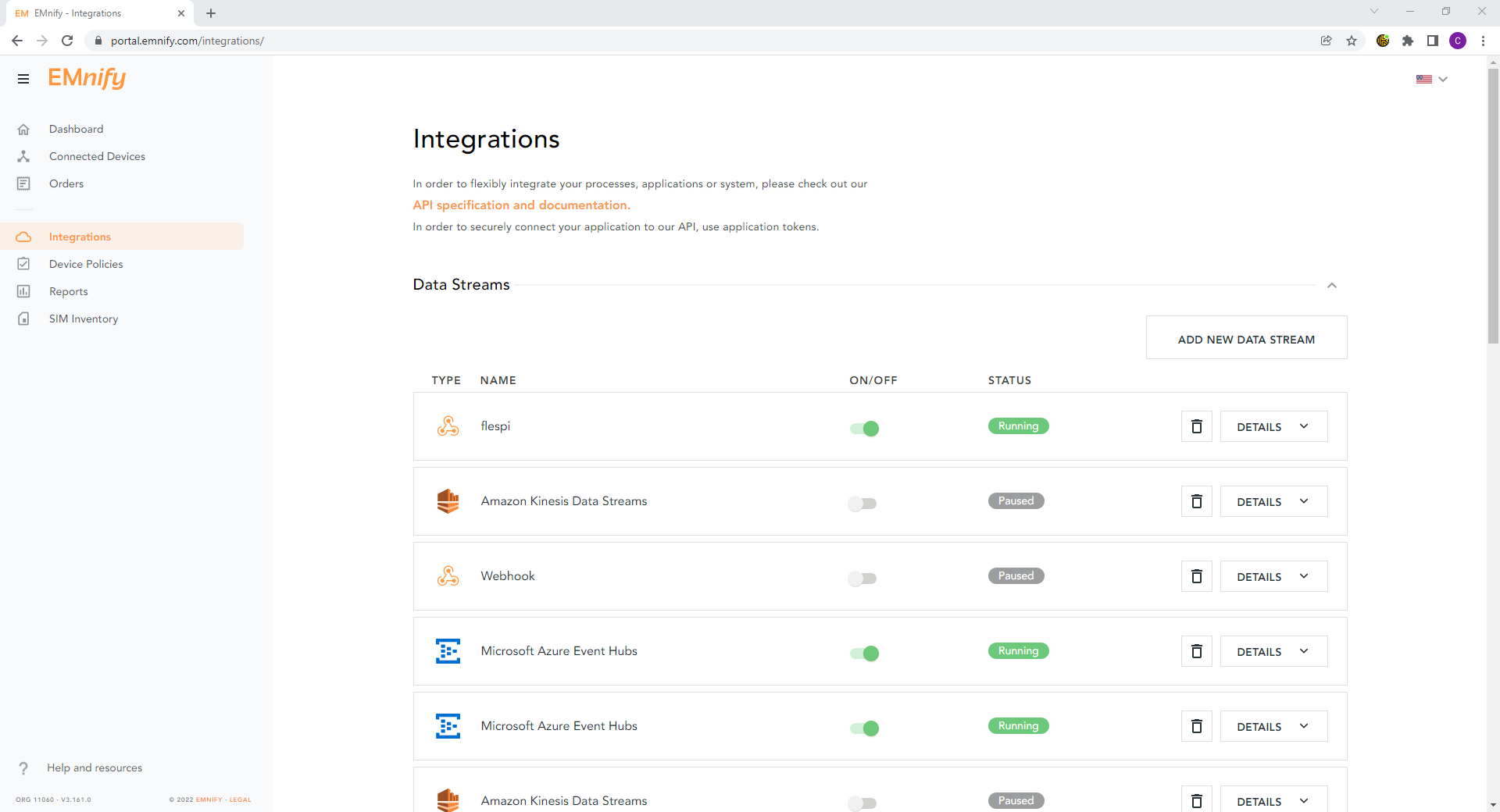
Click on Add New Data Stream and under Event Hubs click ADD
-
- Enter the Connection String Primary Key from step 8 into the Connection String field
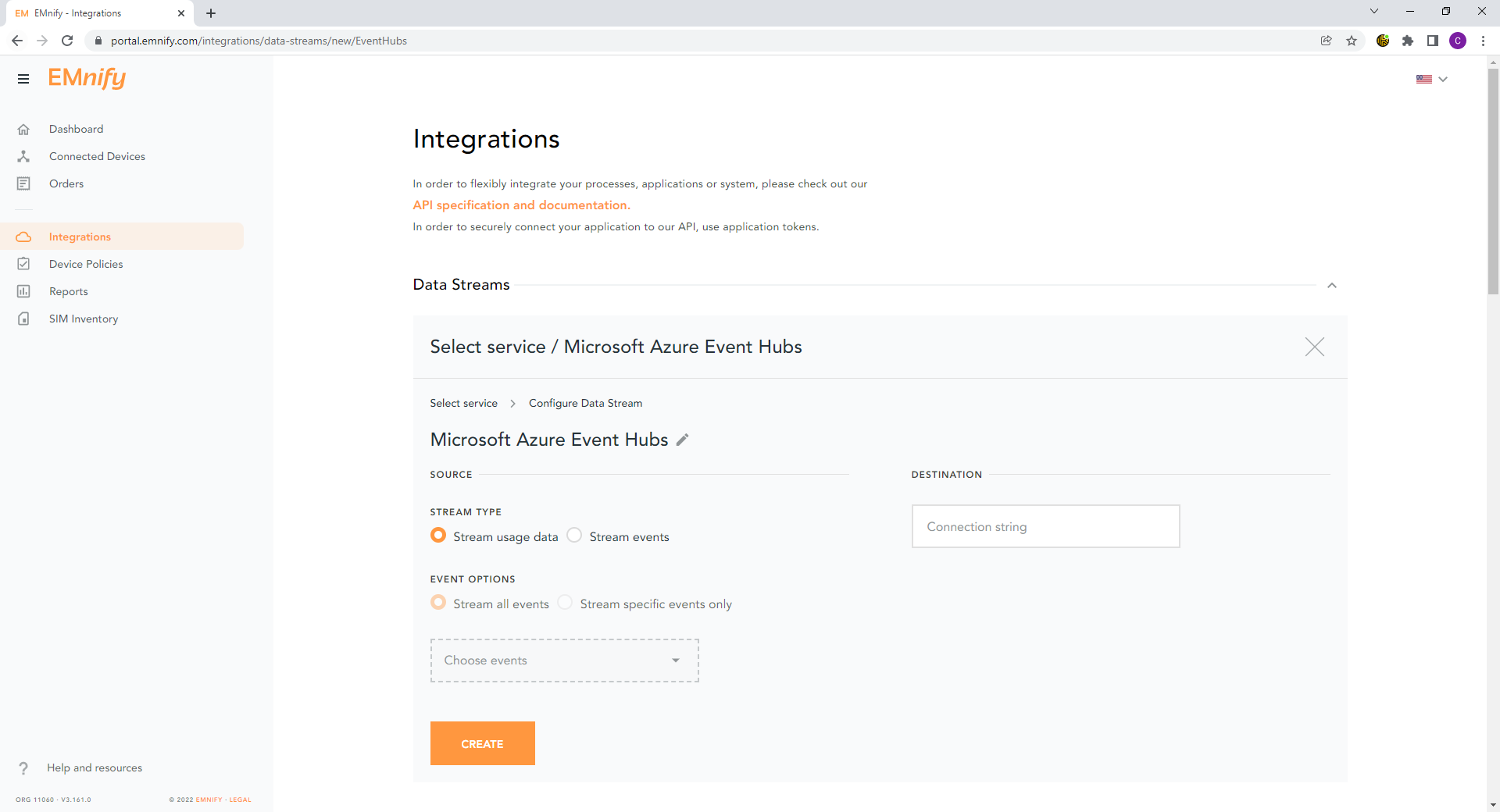
Newly-created data streams are immediately active and should show a green Running status indicating a 200 HTTP response code when correctly configured.
If the configuration is invalid, a warning message will be displayed indicating incorrect configuration.
Upon successful creation, event data arrives directly into the Azure Event Hub for further processing by other services:
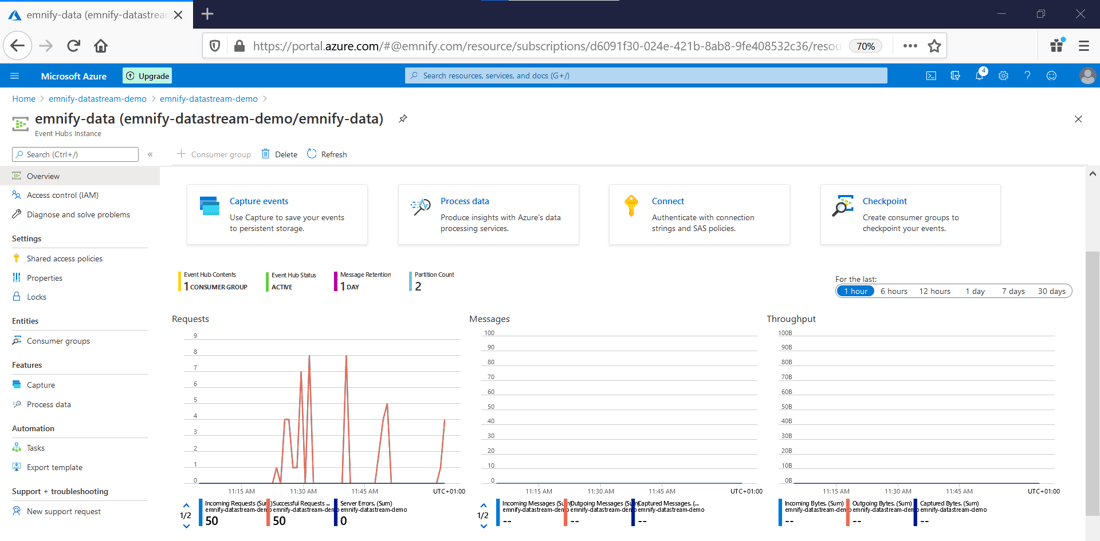
Verifying the integration
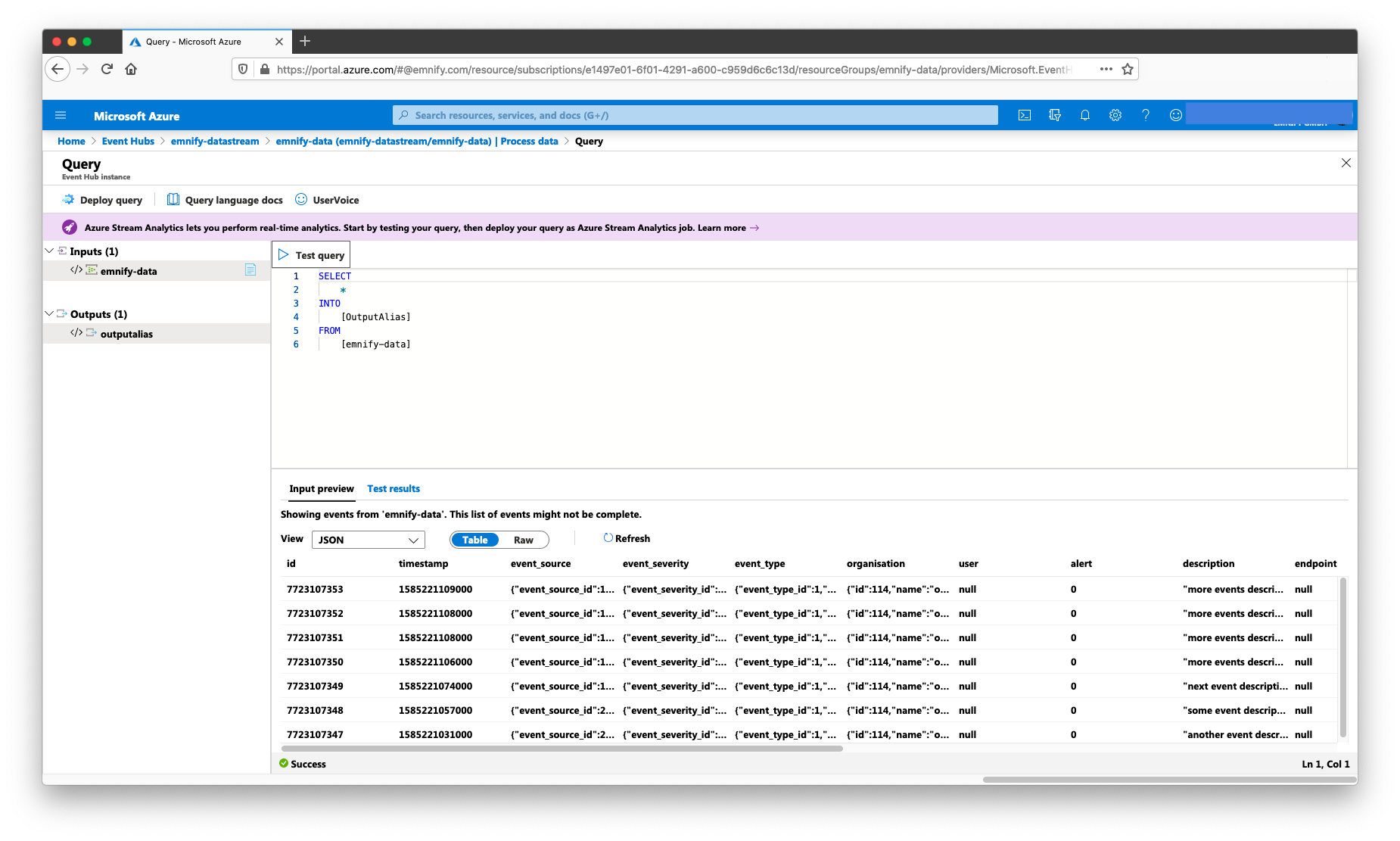
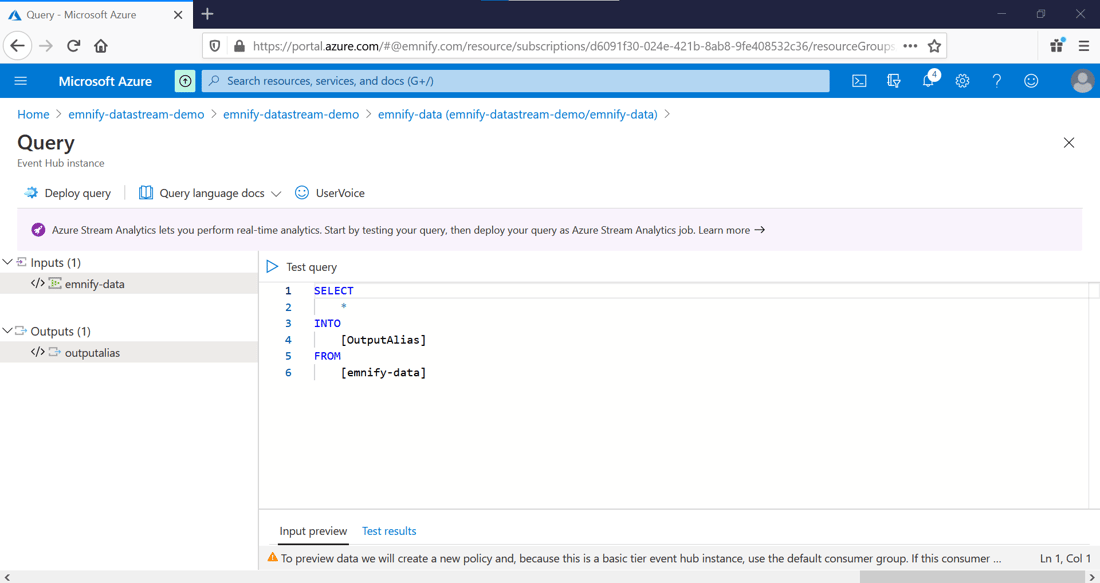
When incoming messages are successfully sent to an Azure Event Hub, clicking on Process Data allows for users to run SQL queries on data as it arrives in real-time.
The default query will list all messages, but the advantages of being able to run queries on live EMnify streaming data could easily be leveraged to get an insight on top devices which consume data within a live time window, aggregate data consumption by hour, per region, tagged EMnify endpoints, and more.
Next Steps
As connectivity data is now arriving in real-time, it's simple to implement other services which can react to any events which are of interest. One useful integration that can be quickly launched is the Capture service which will automatically deliver the streaming data in Event Hubs to an Azure Blob storage or Azure Data Lake Store account. To leverage and make sense of the streaming data, a Stream Analytics job can retrieve the data and feed a Power BI visualization to easily and quickly gain insights.

emnify
The content team of emnify is specialized in all things IoT. Feel free to reach out to us if you have any question.